
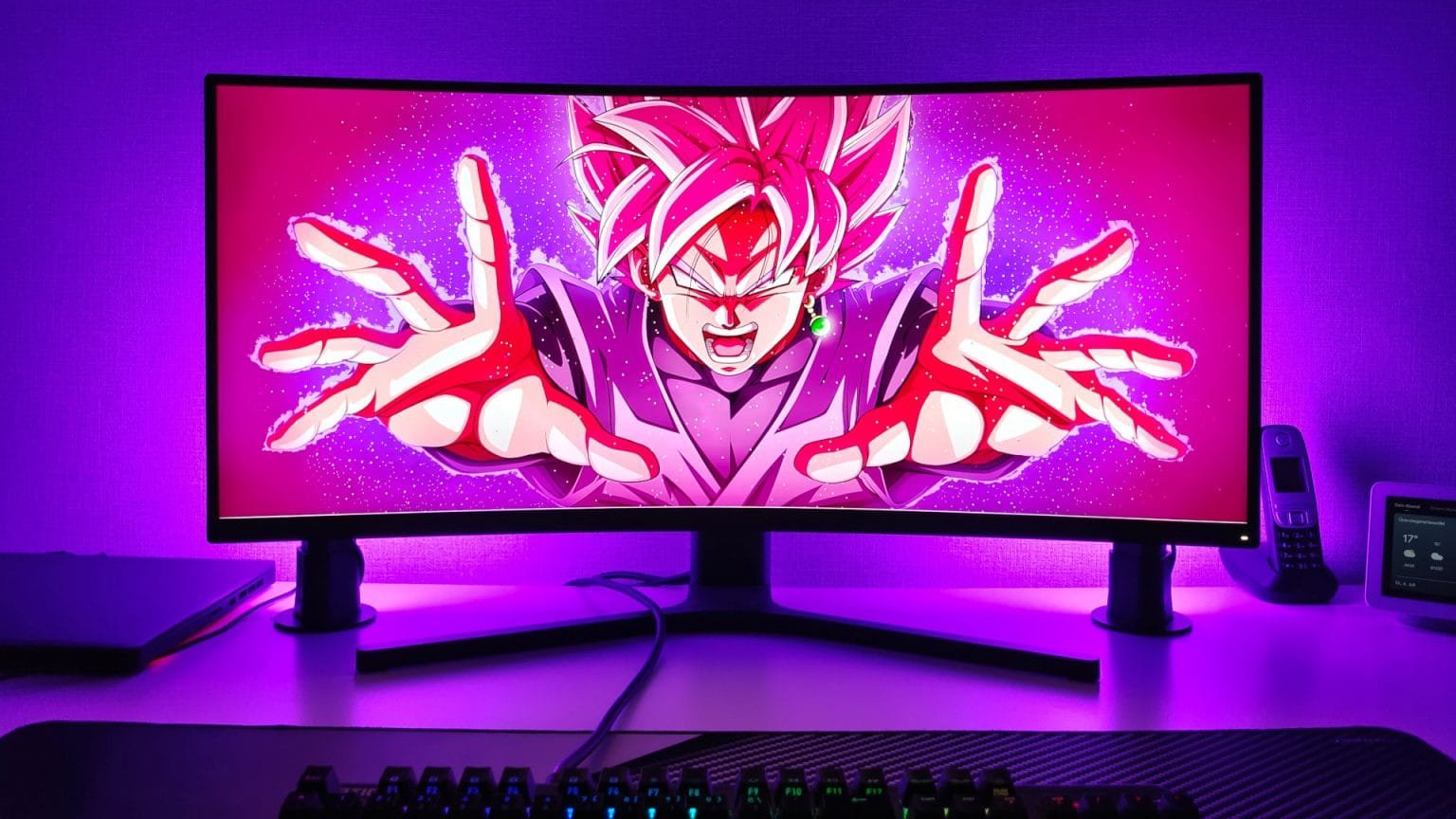
With the Govee Flow Pro Light Bar, Govee—well known for its colorful RGB lighting—offers a much more affordable option compared to the popular Philips Hue Play Lightbar.
These light bars can be used in several ways. You can place them behind a monitor or TV for immersive backlighting, or use them as soft ambient lights to improve the mood of a room. Thanks to their RGB colors, they easily adapt to different setups, whether you’re gaming, watching movies, or just relaxing.
Everything is controlled through a smartphone app, which lets you change colors, brightness, and effects with just a few taps. In this review, we’ll take a closer look at how well they perform and where they really shine in everyday use.
Review: Govee Flow Pro Light Bar
For a long time, the Philips Hue Play Lightbar (released in 2018) was basically the standard choice when it came to smart RGB light bars. There were no real alternatives that offered the same features, so if you wanted this kind of lighting, Hue was almost your only option.
That changes with the Govee Flow Pro Light Bar. In terms of features and overall functionality, it’s very close to the Hue Play Lightbar and can be directly compared to it in everyday use.
The biggest difference is the price. Govee’s set includes two light bars, a camera, and all necessary accessories, and costs around 150 euros. By comparison, the Philips Hue Play Light Bar set with similar functionality costs about 70 euros more, making the Govee option significantly cheaper while offering nearly the same experience.
Scope of delivery and processing
The scope of delivery includes everything you need to operate the light bars. It contains two light columns with a stand and monitor holder, a control unit, a camera, a power supply unit, adhesive foils and a multilingual user manual.
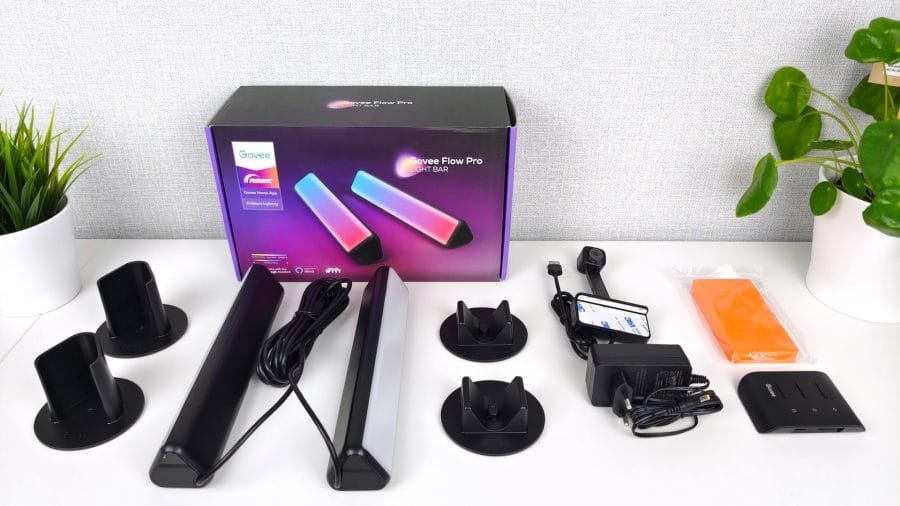
Both light columns are each 25 cm high and connected by a 1,80 m long cable on both sides. This means that the columns can be placed approximately 3,60 m apart. The cable of the camera is 1 m long.
The triangular housings of the light bars are made of plastic. The back is simply black, while the front is milky white. This in turn ensures a particularly soft, diffuse light distribution. The build quality does not come close to the Philips Hue Play Lightbar, but is reasonable for the price.
Installation
The box includes everything you need to get started right away. Inside, you’ll find two light bars with both a stand and a monitor mount, a control unit, a camera, a power adapter, adhesive pads, and a multilingual user manual.
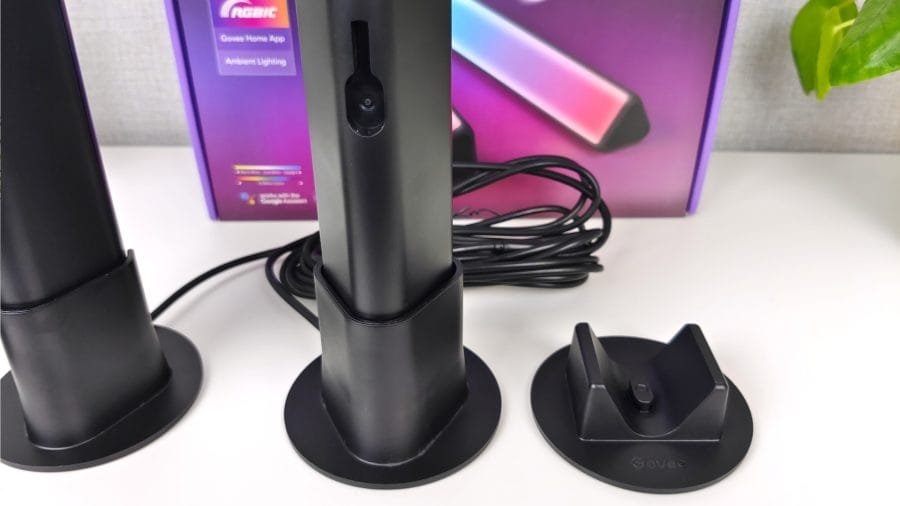
Each light bar measures 25 cm in height and is connected with a 1.8-meter cable on both sides, allowing you to place them up to 3.6 meters apart. The camera comes with a 1-meter cable, which is usually enough for mounting it on top of a monitor or TV.
The light bars feature a triangular plastic housing. The back is plain black, while the front has a milky white finish that helps spread the light evenly and softly across the wall. While the build quality doesn’t quite match the more premium Philips Hue Play Lightbar, it feels perfectly acceptable considering the lower price.
Equipment
Setting up the Govee Flow Pro Light Bars requires the Govee Home app, and you’ll need to create an account using your email address. The good news is that the setup is clearly explained and quick, with only a few simple steps. The first connection is made via Bluetooth.
Using Bluetooth alone already gives you access to most of the important features, such as changing colors, brightness, and lighting effects. However, if you want to control the lights using Google Home, Alexa, or Siri, you’ll need to connect them to Wi-Fi.
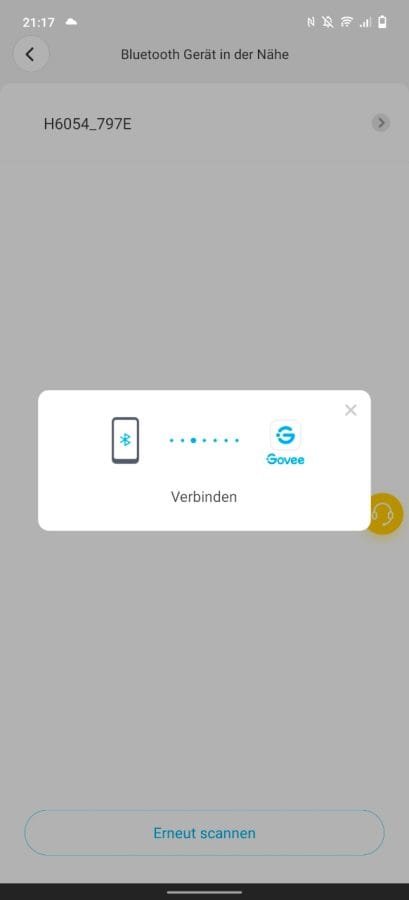
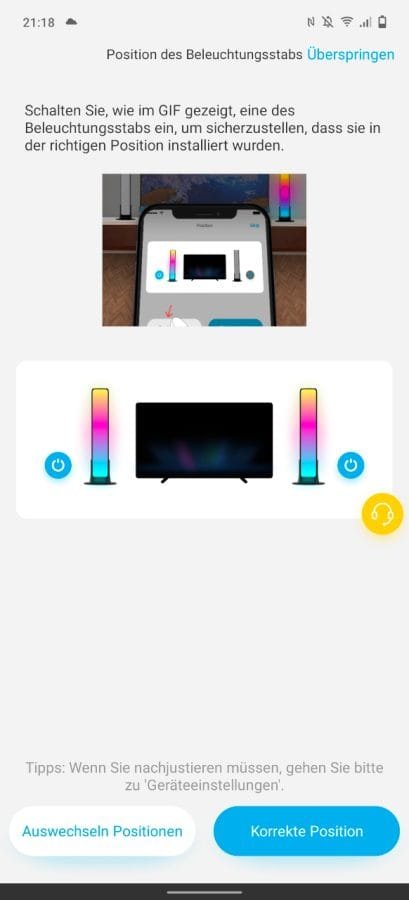
To add the light bars to your home network, the included camera must be plugged into the USB-A port on the control unit. After that, a second setup wizard walks you through the process. Only 2.4 GHz Wi-Fi networks are supported, so 5 GHz networks won’t work here.
One downside is that the camera must remain connected at all times to keep the Wi-Fi connection active. This can be disappointing if you only want to use the light bars as simple ambient lighting and don’t need the camera at all. A built-in Wi-Fi module in the control unit would have been a more practical solution.
Smart “ColorSense” camera
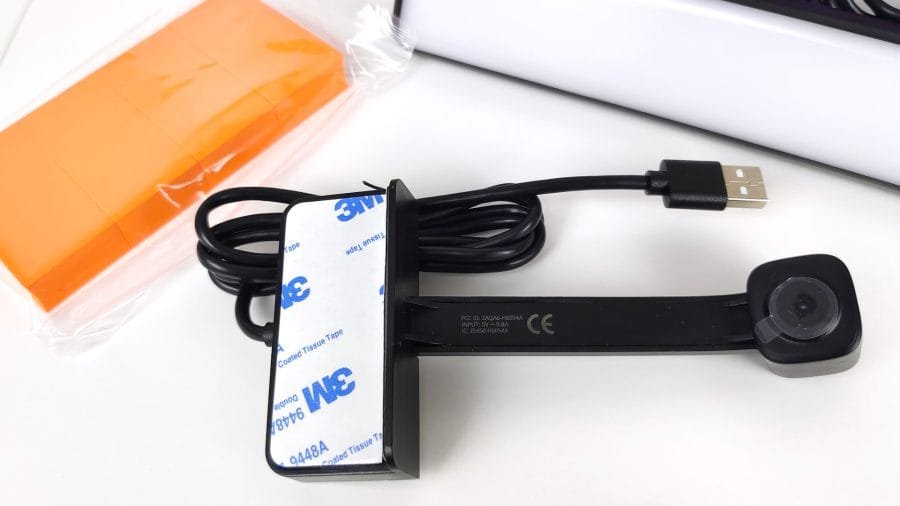
The ColorSense camera is what makes the light bars react to what’s happening on your screen. It’s responsible for matching the colors of the lights to your TV or monitor. To do this, the camera is attached to the top center of the screen frame. It works best on flat, straight edges, while curved or angled screens can make mounting a bit trickier.
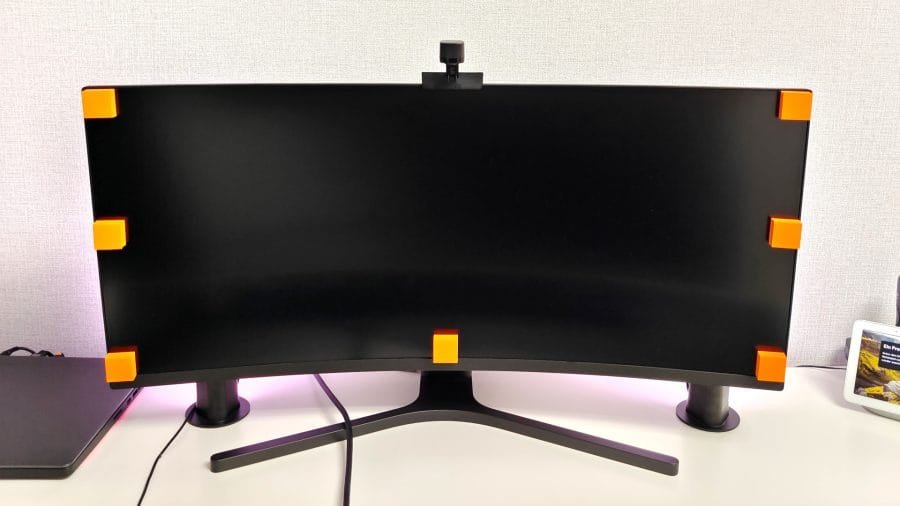
Next comes the calibration step. You place small orange foam pads on the corners of the screen. In the Govee app, you then drag the on-screen calibration points to match the position of these pads. Once that’s done, the foam pads can be removed. They’re reusable and come off cleanly without leaving glue behind.
In practice, calibration also works without the pads, but using them makes it slightly easier to correctly mark the screen corners.
After calibration, the camera continuously reads the colors on your screen. The light bars then adjust in real time, creating an effect similar to Ambilight, where the lighting around the screen extends what you see on it and makes movies, shows, and games feel more immersive.
Field Test
For the hands-on test, the Govee Light Bars were used with a 34-inch curved monitor. As expected, installation and setup were very easy. Even with the curved screen, the ColorSense camera mounted without any real issues.
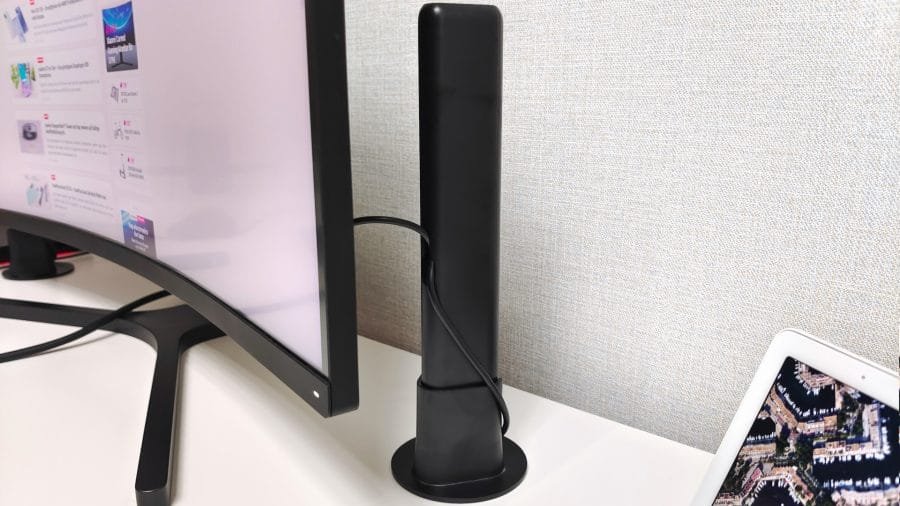
That said, the camera is clearly visible, as it sticks out slightly over the top edge of the screen. On a PC monitor—where you sit fairly close—this can feel a bit distracting at first. Over time, though, it becomes less noticeable and easier to ignore. If you plan to use the light bars only for ambient lighting, you can simply leave the camera unplugged.
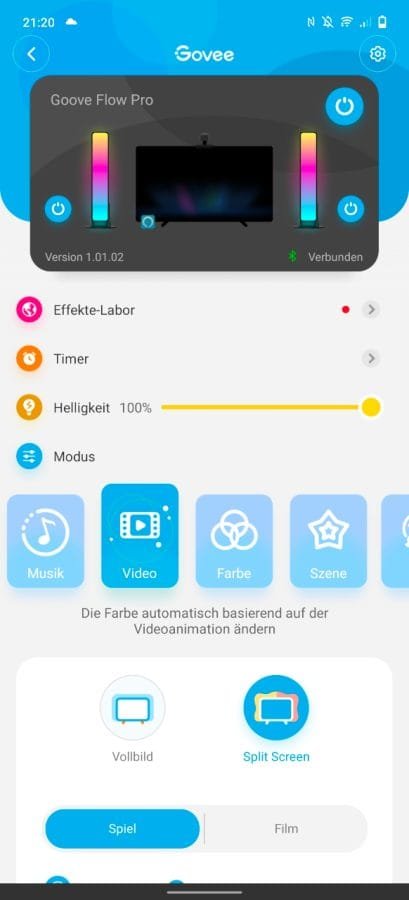
The Govee Home app offers a wide range of useful settings. You can:
- Turn each light bar on or off individually
- Set timers for automatic operation
- Adjust brightness in precise percentages
- Access an effects library with downloadable color scenes and animations
Overall, the app is feature-rich and easy to use, and the light bars themselves can be controlled using five different operating modes, giving you plenty of flexibility depending on how you want to use them.
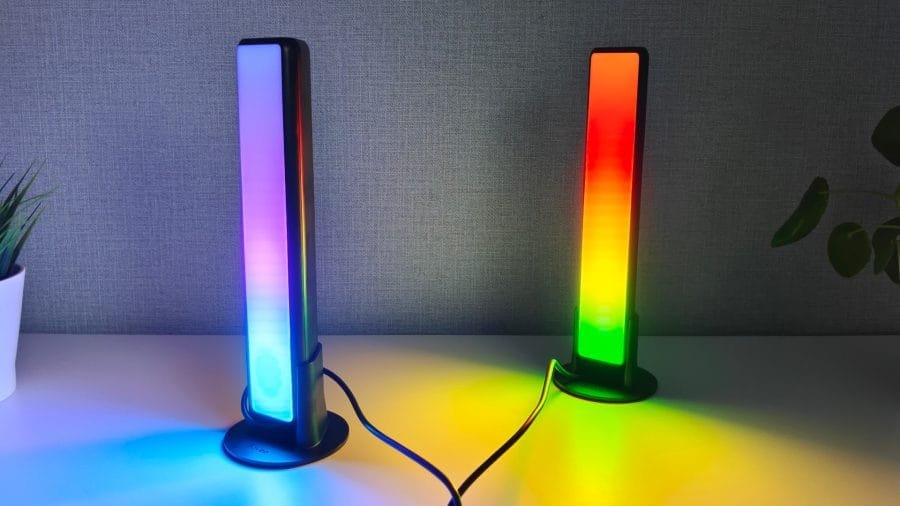
The Video mode is where the ColorSense camera comes into play. You can choose between full-screen or split-screen tracking, and also tell the app whether you’re watching a movie or playing a game.
- In Game mode, the lights react very quickly, with sharp and punchy color changes that match fast action on screen.
- In Film mode, the colors still follow what’s on the display, but the transitions are smoother and more relaxed, which feels nicer for longer viewing sessions.
During testing, the color matching wasn’t always perfect. While the system usually picks up the most dominant color on the screen, high-contrast scenes sometimes leaned toward pink, and very dark scenes often showed a deep blue tone. You can fine-tune this using a saturation slider in the app. Even with these small inaccuracies, the overall Ambilight-style effect works well and clearly makes watching movies or gaming more immersive and enjoyable.
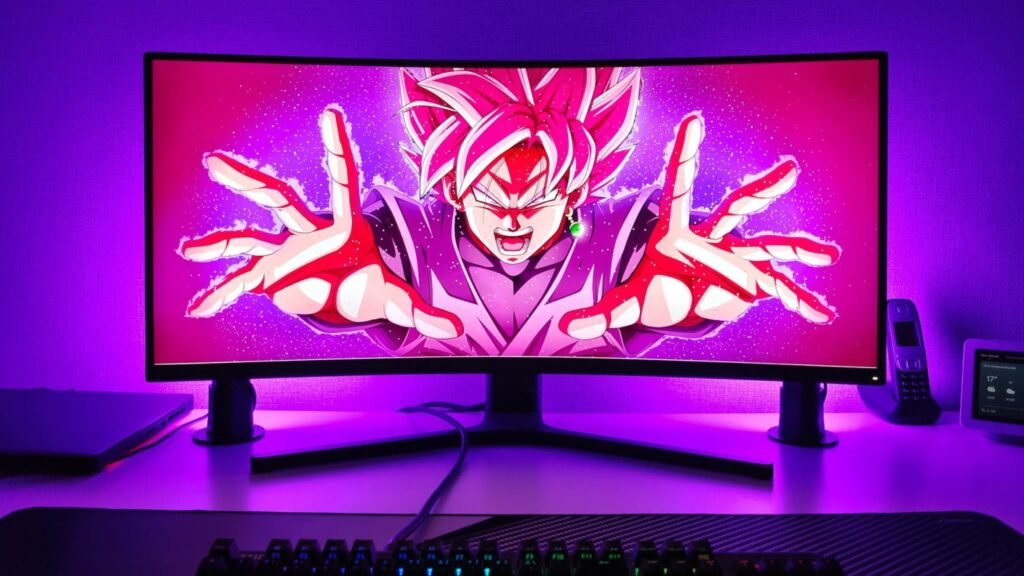
The Color mode is designed for ambient lighting. Each light bar is split into six zones, and you can adjust the color, brightness, and tone of each section individually. To make things easier, your setups can be saved as profiles, so you don’t have to redo everything every time.
In Scene mode, you get 12 preset lighting effects. These include effects like flickering candlelight or falling snow, each with its own style of color movement.
Finally, DIY mode lets you create your own lighting effects. You can customize colors, transitions, and animations, then save them as profiles for later use—perfect if you want a setup that really matches your personal taste or room mood.
CONCLUSION
The Govee Flow Pro Light Bars are a flexible and affordable RGB lighting solution that can enhance gaming, movies, music, or simply create a cozy atmosphere in any room. They stand out thanks to their easy installation, wide range of settings and controls, and soft, diffuse light with 16 million color options. They are especially great for ambient lighting, and the built-in dynamic effects and music synchronization work very well.
They can also serve as a synchronized backlight for screens, although the color matching isn’t always perfect and can sometimes feel a bit random. Despite this, the Govee Light Bars are a successful and fun RGB gadget that easily competes with the much more expensive Philips Hue Play Lightbar.